
You can put Krira TV on almost any Android TV, Google TV or Android TV box — no USB stick or computer needed. The free Downloader app fetches the APK for you when you type a short code.
The Krira TV Downloader code
9568364
Or type the short address aftv.news/9568364. Both point to the latest official APK.
Step-by-step on Android TV / Google TV
- Install Downloader. Open the Google Play Store on your TV, search Downloader and install the app by AFTVnews (orange icon). It's free.
- Allow it to install apps. Go to Settings → Apps → Security & restrictions → Unknown sources and turn on Downloader. On Google TV: Settings → System → About, click Android TV OS build seven times to enable developer mode, then Settings → Apps → Security & restrictions → Unknown sources → Downloader.
- Enter the code. Open Downloader, select the address box on the Home tab, type 9568364 and press Go.
- Install. The APK downloads automatically and the installer opens. Select Install, then Done.
- Clean up. Downloader offers to delete the file — choose Delete to free space. Krira TV stays installed.
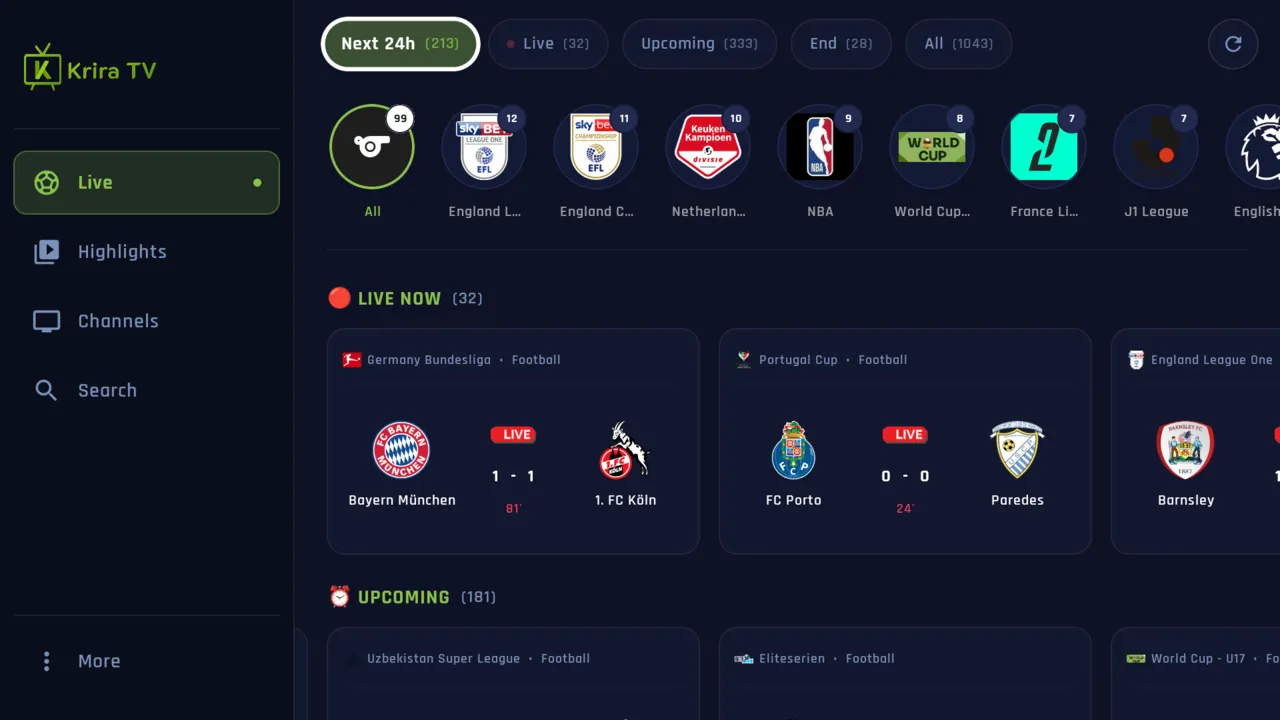
TV models this works on
Any TV or box running Android TV or Google TV, including Sony Bravia, TCL, Hisense (Android models), Xiaomi Mi TV and Mi Box, Walton and Vision Android TVs, Philips Android TVs, Nvidia Shield, Chromecast with Google TV and most generic Android TV boxes.
Samsung (Tizen) and LG (webOS) TVs are not Android, so they can't install APKs. Plug in a Fire TV Stick, Chromecast with Google TV or an Android TV box — or follow the Firestick guide.
Using Krira TV with a remote
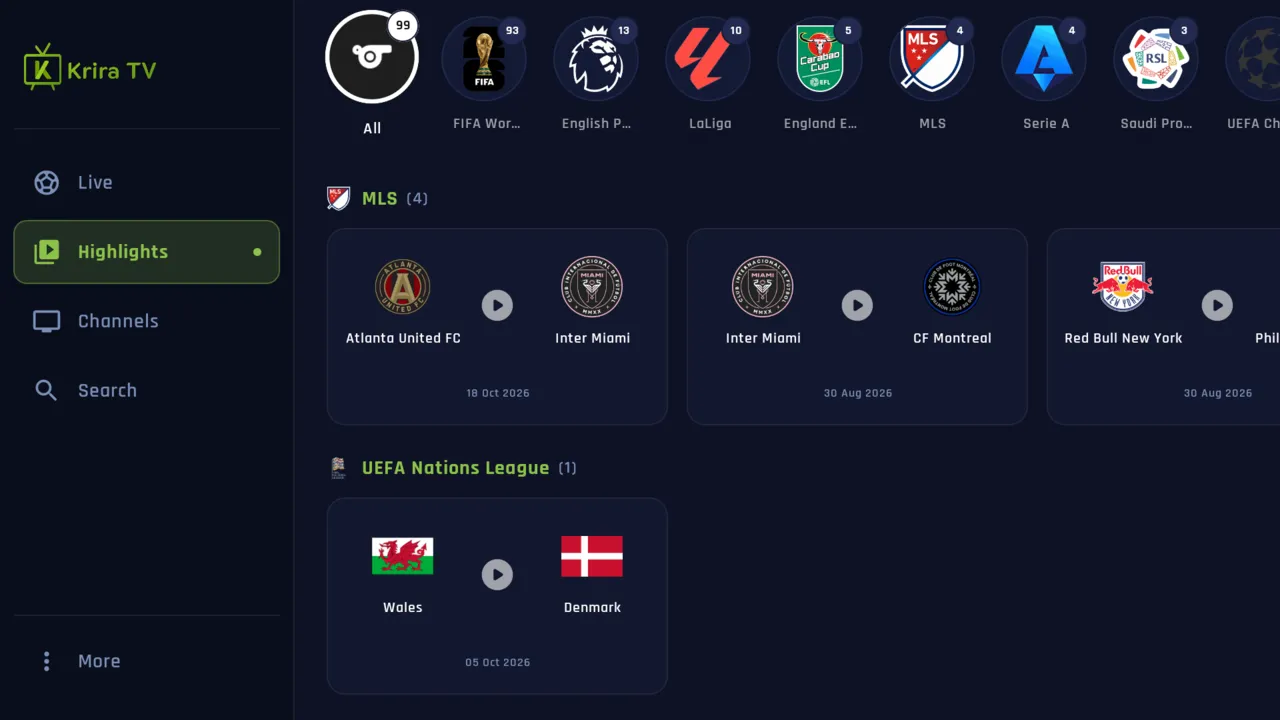
- Use the arrow keys to move between matches and OK to open one.
- In the player, press OK to show controls and the server list.
- If a stream is slow, press Back once and choose another server for the same match.
Streams stuttering on the TV? See buffering fixes — TVs on Wi-Fi far from the router are the most common cause.